
Design with Claude Desktop, Cursor or ChatGPT (MCP and other AI apps)
Connect Tarz to your favourite AI app with MCP, install the Claude skill, or copy the instructions into any chatbot.
If you already pay for an AI app, you can let it design with Tarz. Open AI designer → Other AI apps in Tarz: it prepares everything for you.
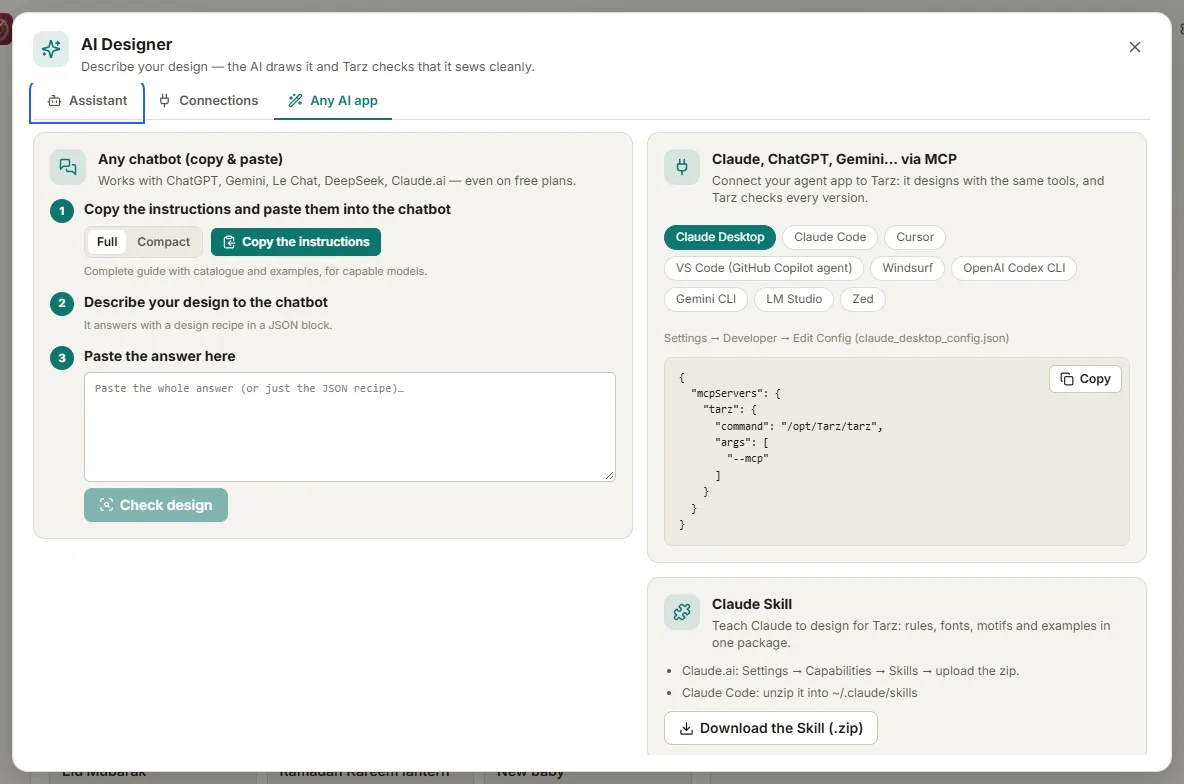
- MCP (Claude Desktop, Claude Code, Cursor, VS Code, Windsurf, Gemini CLI, LM Studio…): pick your app in the list and copy the configuration Tarz shows. It runs the Tarz program on your computer with the
--mcpoption, so the AI can search fonts and motifs, create designs, read Tarz's review and export files. - Paste the configuration where your app expects it (for Claude Desktop: Settings → Developer → Edit Config) and restart the app. A tarz tool appears in the app.
- Ask: "Design a wedding cushion with the names Amina and Yacine, 200 × 200 mm, export as PES". The AI improves the design until Tarz's review has no errors.
The Claude skill
Click Download Claude skill to get a ready-made skill (a small .zip) that teaches Claude how to write Tarz design recipes. Add it in Claude under Settings → Capabilities → Skills.
Any chatbot (ChatGPT, Gemini…) without setup
- Click Copy instructions and paste them into the chat, followed by your request.
- Copy the answer of the chatbot (the design recipe) and paste it back into Tarz.
- Click Check design: Tarz builds the design and shows its review; send the review to the chatbot to fix remaining problems.
Privacy: with MCP and local apps, your files stay on your computer. With cloud chatbots, only the text you paste is sent to the provider.