Drawing tools: colours, eyedropper, guides and shortcuts
Work like in a drawing program: pick colours from a panel, copy a style with the eyedropper, align with smart guides and duplicate with Alt.
Colours
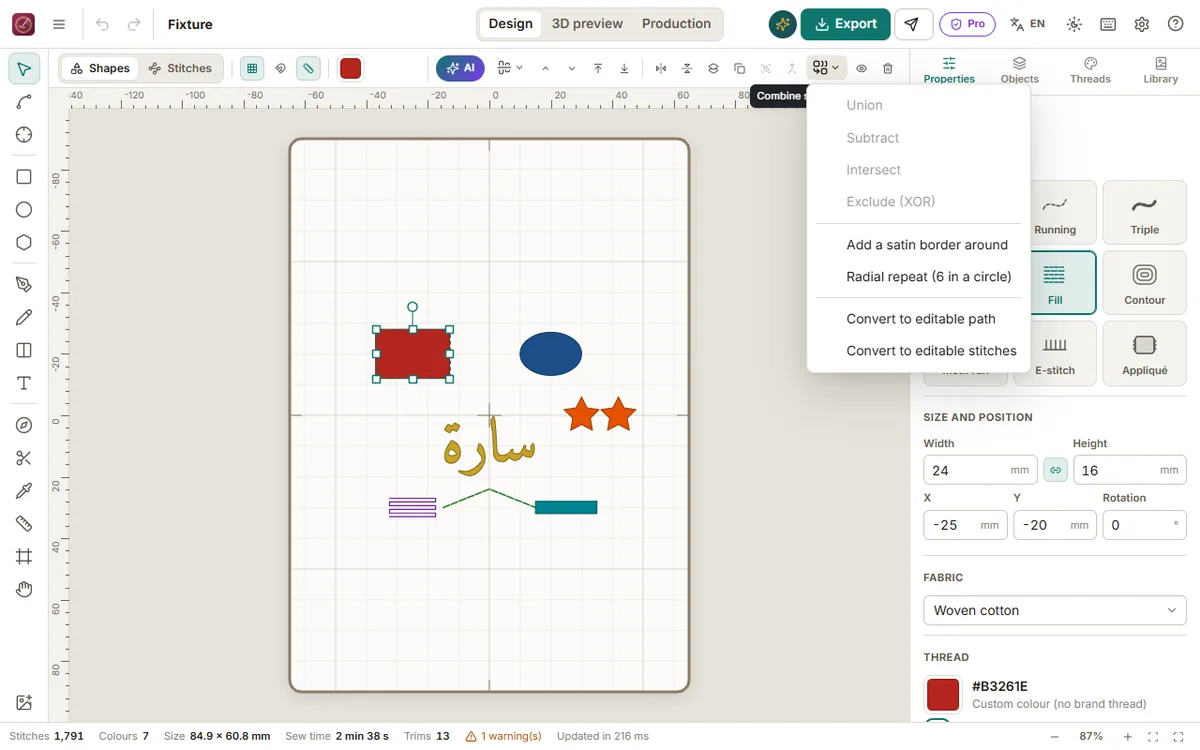
Click the colour square in the toolbar above the canvas (or in Properties → Thread). The colour panel opens:
- drag in the large field (brightness and saturation) and on the rainbow bar (hue);
- type a code such as
#C9A227; - use the eyedropper button to take a colour from anywhere on the screen (a photo, a reference image);
- pick from Recent, In this design or the quick colours;
- Closest threads lists the real threads of your brand (Madeira, Isacord…) nearest to the colour: click one to use that exact thread.
The colour goes to the selected objects and to the next shapes you draw. Several changes in a row are undone in one step (Ctrl+Z).
Eyedropper tool (I)
Select the objects to change, press I and click another object: the selection takes its thread and stitch settings (satin, fill, density…). With Shift, only the colour is copied. Without a selection, the clicked colour becomes the colour of new shapes.
Moving, aligning and duplicating
- While you move objects, pink guide lines appear when edges or centres line up with other objects or with the hoop centre; the object snaps to them. Hold Ctrl to move freely.
- Hold Alt while dragging to move a copy; the original stays.
- Shift while moving keeps the movement horizontal or vertical.
- Arrow keys nudge by 0.5 mm.
Zoom
Ctrl+0 fits the hoop, Ctrl+1 shows the real size, Ctrl+2 zooms on the selection, the wheel zooms where the pointer is, and Space + drag moves the view.
All shortcuts: Ctrl+/. The right-click menu shows the actions for what is under the pointer.