
Florentine, gradient and accordion fills
Make fill rows follow a curve you draw, and vary the density across a shape for shading and fades.
Florentine fill
In a Florentine fill, every row of the fill is a copy of a guide curve you draw. The rows bend like the curve, which suits feathers, waves, leaves, ribbons and flowing hair.
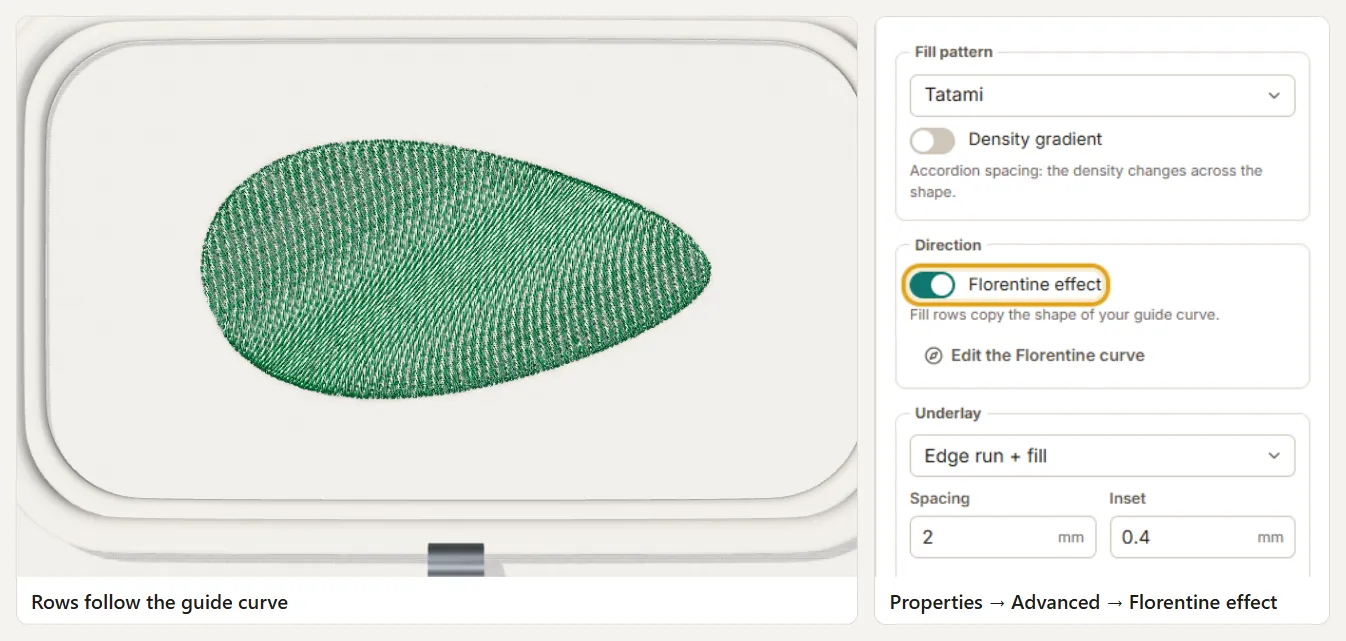
- Select a closed shape with a fill (tatami).
- In Properties → Fill, turn on Florentine.
- Click Draw guide curve and click points across the shape (double-click to finish). The curve can extend beyond the outline.
- The rows follow the curve immediately. Drag the curve's nodes to refine it; press Esc to leave the curve editor.
- Keep the Spacing of a normal fill; Tarz Studio keeps the row distance even, also where the curve bends.
Gradient density
A gradient fill changes the row spacing from one side of the shape to the other: dense where the colour must be solid, open where the fabric should show through. Use it for shading, sunsets, fades and soft edges.
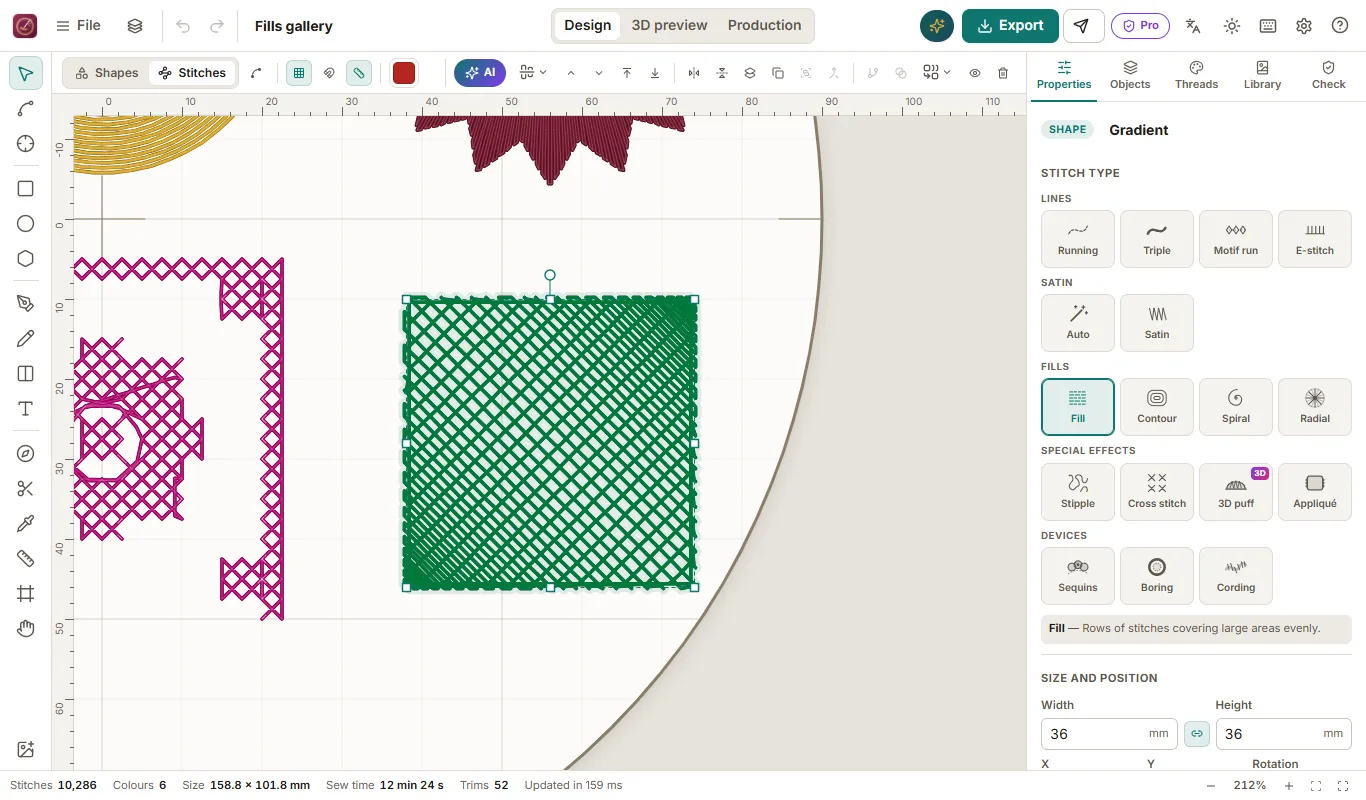
- Select a filled shape.
- In Properties → Fill, turn on Gradient density.
- Set Start spacing (for example 0.40 mm, solid) and End spacing (for example 2.5 mm, light).
- Set the Direction in degrees, or drag the arrow shown on the canvas.
Accordion spacing
Accordion spacing alternates dense and open bands across the shape. It creates stripes and rhythmic textures without extra objects. In Properties → Fill, choose Accordion under Density profile, then set the dense and open spacing and the band width.
Tips
- Very open spacing (above about 3 mm) can show the underlay: turn the underlay off for light fades, or use the same colour for underlay and fabric.
- To fade one colour into another, use colour blending rather than two separate gradients.
- Gradient and accordion work with tatami, Florentine and satin fills.