
Colour blending between two threads
Create a smooth transition between two thread colours inside one shape, with two layers of opposite density.
Colour blending sews the same shape twice with two threads. The first layer is dense on one side and fades out; the second layer starts light and becomes dense on the other side. Where they overlap, the eye mixes the two colours. It gives skies, petals, fruit and portraits a painted look.
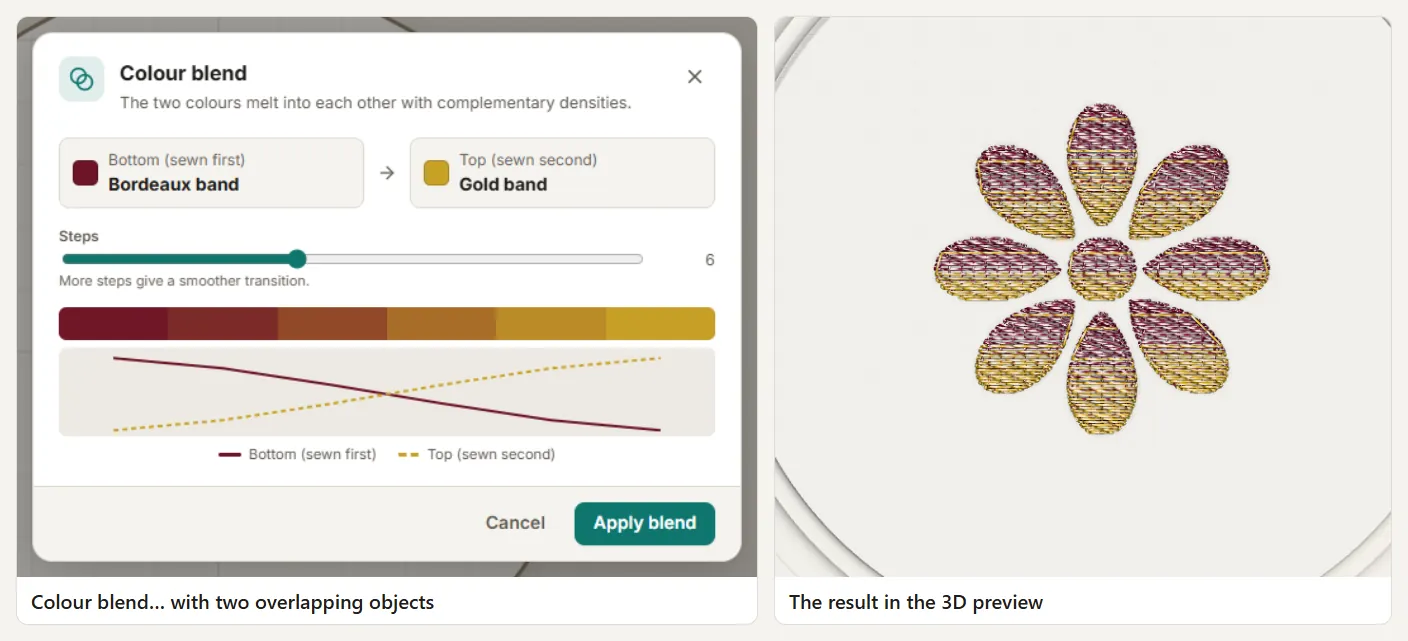
Step by step
- Select a filled shape (tatami, Florentine or satin).
- In Properties → Fill, choose Colour blend.
- Pick the first colour and the second colour (thread chart or colour panel).
- Set the Direction of the blend (degrees, or drag the arrow on the canvas).
- Adjust Overlap: how much of the shape both colours share. 40–60 % gives a soft transition; less gives a sharper one.
- Set the Darkest spacing (for example 0.40 mm) and the Lightest spacing (for example 3.0 mm) of each layer.
Tarz Studio offsets the rows of the two layers so the needle does not hit the same holes, and limits the total density where the layers overlap.
Sequence and colour changes
A blend adds one colour change. If several blended shapes use the same two threads, put them next to each other in the sequence (Properties → Group by colour, with nothing selected) so the machine changes colour only once.
Tips
- Pick neighbouring colours (gold and orange, light and dark blue) for the most natural result; very contrasting colours look striped.
- Blends need a stable fabric: use a cut-away stabilizer on knits.
- Check the result in the realistic 2D and 3D views, which show both layers.