
Install Tarz on macOS
Install the universal app (Apple Silicon and Intel) on macOS 10.15 or later.
The macOS version of Tarz is a single universal app that runs natively on Apple Silicon (M1, M2, M3, M4) and Intel Macs with macOS 10.15 Catalina or later.
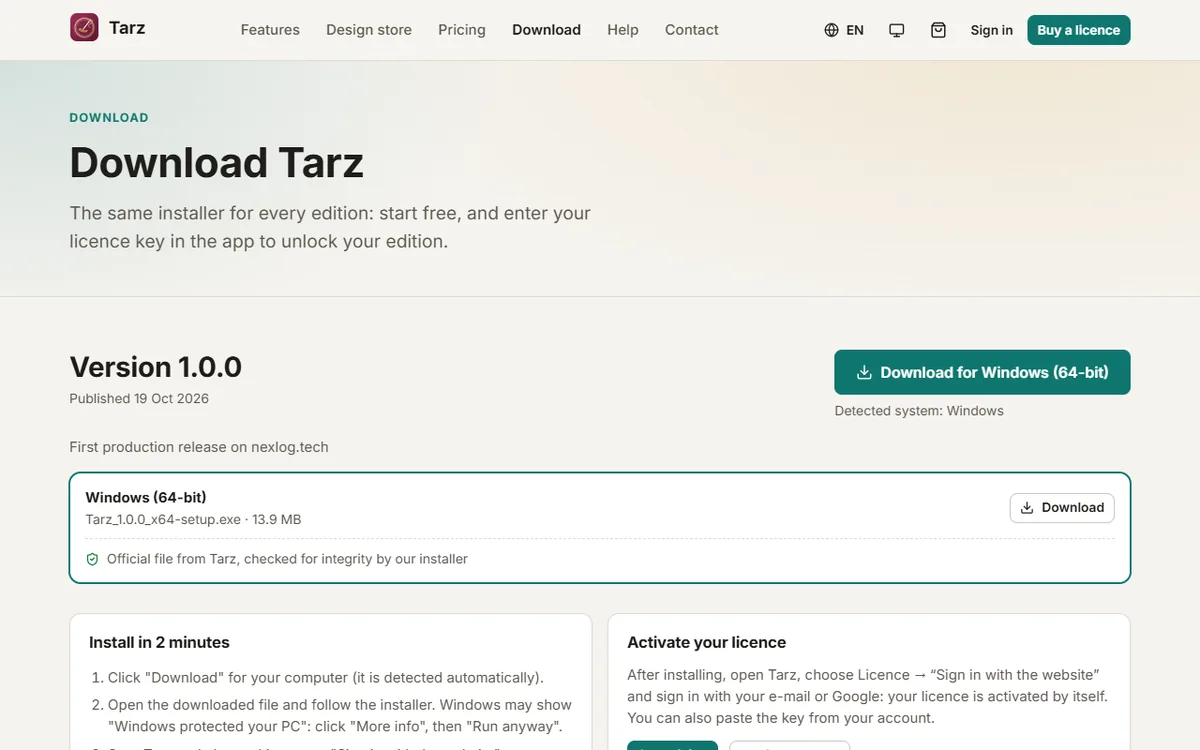
- Open the Download page and choose macOS. The file is called
Tarz_<version>_universal.dmg. - Optional: check the file in Terminal with
shasum -a 256 ~/Downloads/Tarz_*_universal.dmgand compare with the SHA-256 on the Download page. - Double-click the
.dmgfile. In the window that opens, drag the Tarz icon onto the Applications folder. - Eject the disk image (the eject button next to Tarz in the Finder sidebar).
- Open Applications and double-click Tarz. The app is signed and notarized by Apple; macOS asks once whether you want to open an app downloaded from the internet: click Open.
- Activate your licence: see Activate your licence.
If macOS refuses to open the app, open System Settings → Privacy & Security, scroll down to the message about Tarz and click Open Anyway. This only happens when the download was damaged or modified: in doubt, download it again from the official site.
Where are my files?
Projects are saved where you choose (we recommend a Tarz folder in Documents). App settings and AI connections are stored in your user Library and stay on this Mac.