
Activate your licence
Unlock your edition on a computer with your licence key, a purchase code or your Tarz account.
After payment, your licence appears in your account under Licences and is sent by e-mail with your invoice. Each licence has a number of seats (computers).
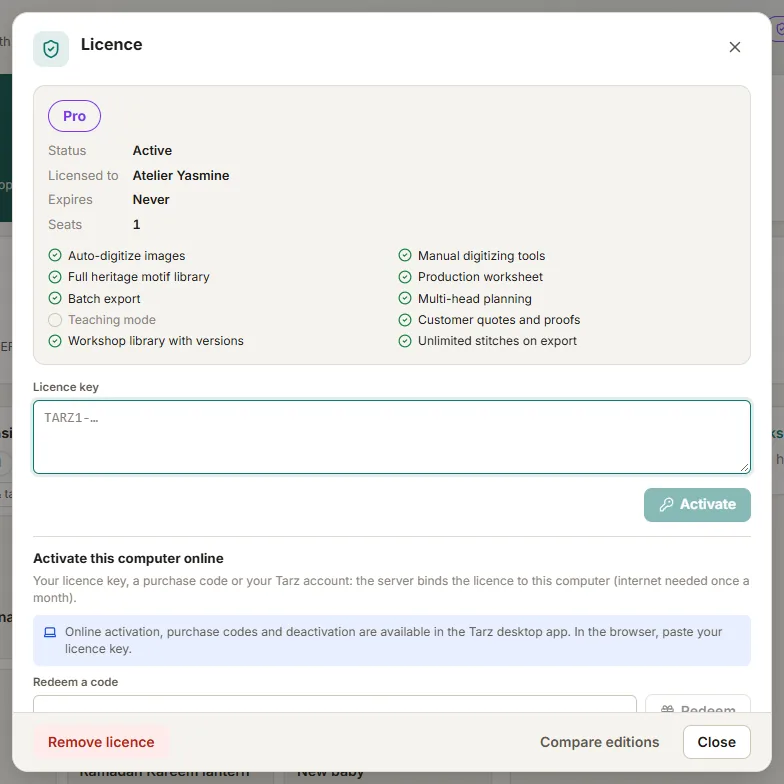
- Open Tarz and click Licence (the badge at the top right shows your current edition).
- Choose one way to activate:
- Sign in with the website (recommended): your browser opens, you sign in with your e-mail or Google and click Connect this computer. Nothing to copy — see Sign in with the website;
- Licence key: copy the key that starts with
TARZ1-from your account or e-mail and paste it; - Purchase code: a printed code from a reseller, in the form
XXXX-XXXX-XXXX-XXXX; - Tarz account: your e-mail address and password (and the 2FA code if you enabled it).
- Click Activate. Tarz connects once to the licence server, which binds the licence to this computer.
- The badge now shows your edition (Atelier, Pro or School). The device appears in your account under Licences → Devices.
After activation
- Tarz refreshes the activation automatically about once every 30 days when the computer is online. If it cannot connect, it keeps working 30 more days and reminds you.
- If you are offline at the moment of activation, the key works right away and is bound to the computer the next time you are online.
- All seats used? See Move your licence to a new computer.
Keep your key private. Anyone with your key can use one of your seats. You can see and free your devices at any time in your account.