Sign in with the website (licence and account in one step)
Connect the Tarz app to your account from your browser: the licence is activated and Tarz Cloud AI, the cloud library and proofs are connected, with nothing to copy.
This is the easiest way to set up Tarz on a computer. You sign in on the website as usual (e-mail and password, or Continue with Google), and the app receives everything by itself.
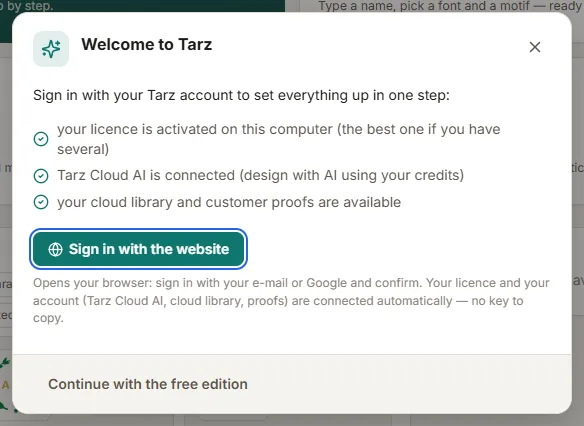
- In Tarz, open Licence (the badge at the top right) and click Sign in with the website. You can also start it from AI Designer → Connections → Tarz Cloud AI.
- Your browser opens the Connect the Tarz app page. Tarz shows a short code such as
ABCD-EFGH. - Sign in if you are not already (e-mail or Google; your 2FA code if you enabled it).
- Check that the code on the page is the same as in Tarz, then click Connect this computer.
- Go back to Tarz: after a few seconds it shows Signed in as …. Your licence is active on this computer, and Tarz Cloud AI, the cloud library and proofs work.
Good to know
- The code is valid for 10 minutes and can be used once. If it expires, click Retry in Tarz.
- If your account has no licence yet, the account is still connected (Tarz Cloud AI, library, proofs). Buy a licence on the website, then sign in again.
- All seats in use? Free a device in your account under Licences, or see Move your licence.
- Did not start this yourself? Click It's not me — refuse on the page: nothing is shared.
- Each computer gets its own access; signing in again on the same computer replaces the previous one. You can see and revoke access tokens in your account under AI credits.
- On a computer without internet, use a licence key instead (Offline workshops).