Install Tarz on Windows
Download the installer, install Tarz on Windows 10 or 11 and open it for the first time.
Tarz runs on Windows 10 and Windows 11 (64-bit). The installation takes about two minutes and does not need administrator rights for your personal account.
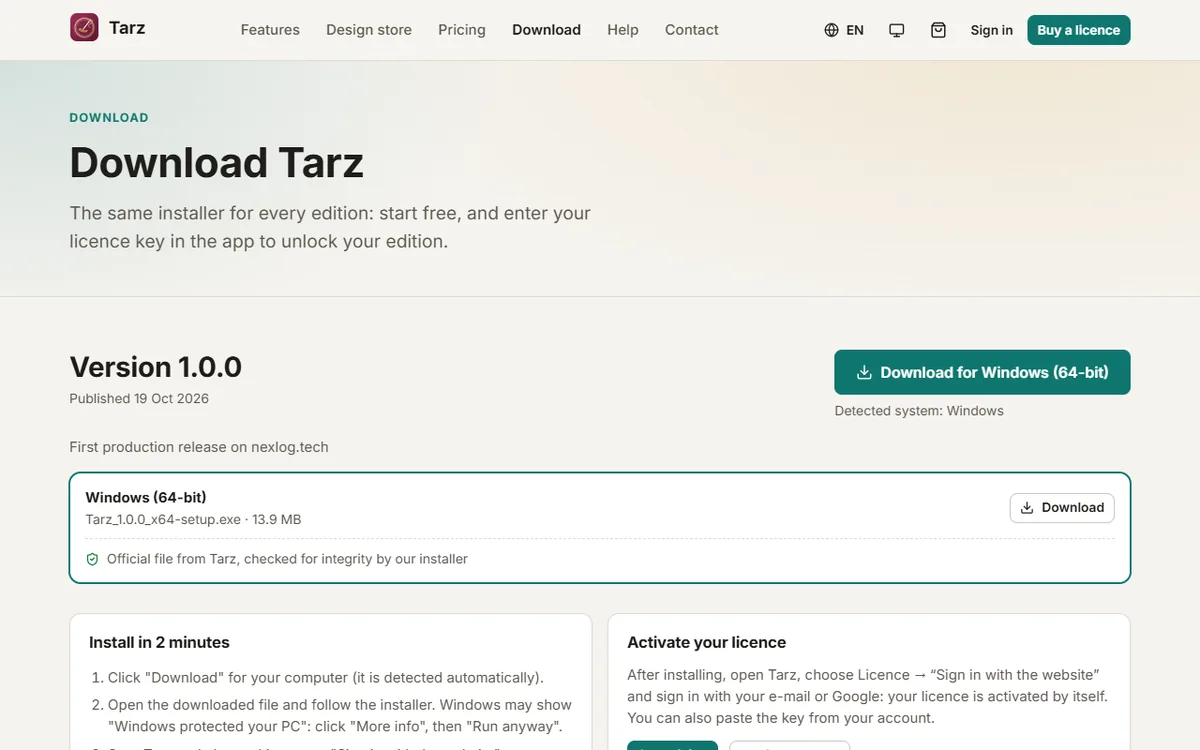
- Open the Download page and click Windows. The file is called
Tarz_<version>_x64-setup.exe. - Double-click the installer. Windows shows the publisher of the file: it must read Tarz. If SmartScreen says Windows protected your PC right after a new release, click More info, check the publisher, then Run anyway.
- Choose the language of the installer and whether Tarz is installed for you only (no administrator rights needed) or for all users of the computer, then click Install. The installer checks that the file is complete before installing. The WebView2 component that Tarz needs is already part of Windows 10/11; the installer adds it if it is missing.
- Open Tarz from the Start menu. The app starts in the Free edition: you can open every file format and try all the tools.
- To unlock your edition, choose Licence → Sign in with the website and follow Activate your licence.
Tip: your designs are saved on your computer only. Tarz works without internet; a connection is needed once to activate a licence and then once a month.
Uninstall
Open Settings → Apps → Installed apps, find Tarz and choose Uninstall. Your projects (.tarz files) are not deleted. Before uninstalling on a computer you are giving away, use Licence → Deactivate this computer to free the seat.