Send designs to your machines (DNC)
Connect your embroidery machines to the local network, send designs without a USB stick, manage a queue per machine and follow production live.
DNC (direct numerical control) sends designs from the computer to the machine over a cable or the network. Tarz Studio converts the design for each machine, checks it, sends it and shows the machine's state.
What you need
- A Tarz Studio edition that includes the production tools (see the editions on the pricing page).
- Machines on the same local network as the computer, either with a built-in network port or through a network adapter (USB-share, serial or Wi-Fi adapter) supported by Tarz Studio.
- No internet connection is needed: everything stays on your network.
1. Add a machine
- On the home screen open Production floor and click Add a machine.
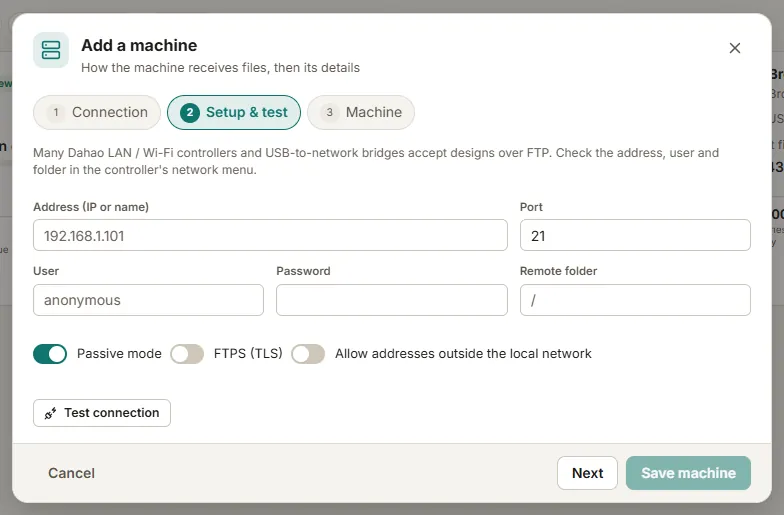
- For a Tarz DNC Agent click Search: agents that answer on the network are listed. Machines reached through a shared folder, FTP or USB are added by their address or path.
- Choose the machine profile (brand, number of needles, hoops, file format, devices such as sequins or borer). The profile is used to convert and check every design.
- Give the machine a name visible to operators, for example "Head 3 — caps".
- Click Test connection. The machine card turns green when it answers.
2. Send a design
- Open the design and click Send to machine (or right-click a design in the library).
- Choose one or several machines. Tarz Studio converts the design to each machine's format and runs the machine check (hoop, colours and needles, stitch limits).
- Confirm. The design goes to the end of the machine's queue.
Batches (team names) are sent the same way: each version becomes one queue entry.
3. Manage the queue
- Drag entries to change the order; the next design is loaded when the machine finishes the current one, if the machine supports it.
- Hold keeps an entry in the queue without sending it; Remove takes it out.
4. Follow production
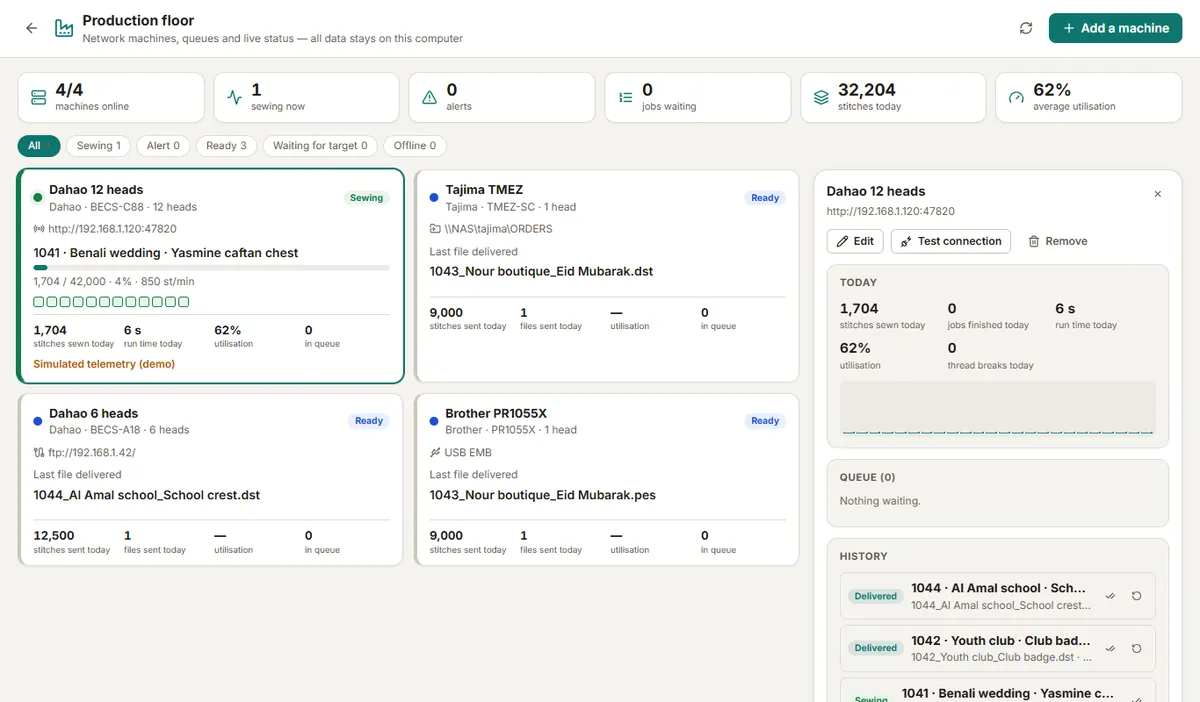
Each machine card shows its state: Queued, Receiving, Sewing (with stitch count and progress), Thread break, Stopped or Finished. Alerts appear when a machine stops. Machines that only accept files (no status reporting) show "Sent" once the file has been received.
Troubleshooting
- Machine not found: check that the computer and the machine (or adapter) are on the same network and that no firewall blocks Tarz Studio.
- Format not accepted: open the machine profile and choose the format and the folder the machine reads from.
- When the network is down, use Export to a USB stick as before; the queue is kept.