Sequins: lines, areas and devices
Drop sequins along a path or spread them over an area, choose size and attach stitch, and send the device commands to your machine.
Machines with a sequin device feed a sequin tape, cut one sequin, drop it under the needle and tack it with a few stitches. Tarz Studio places the sequins and writes the sequin commands in the machine file.
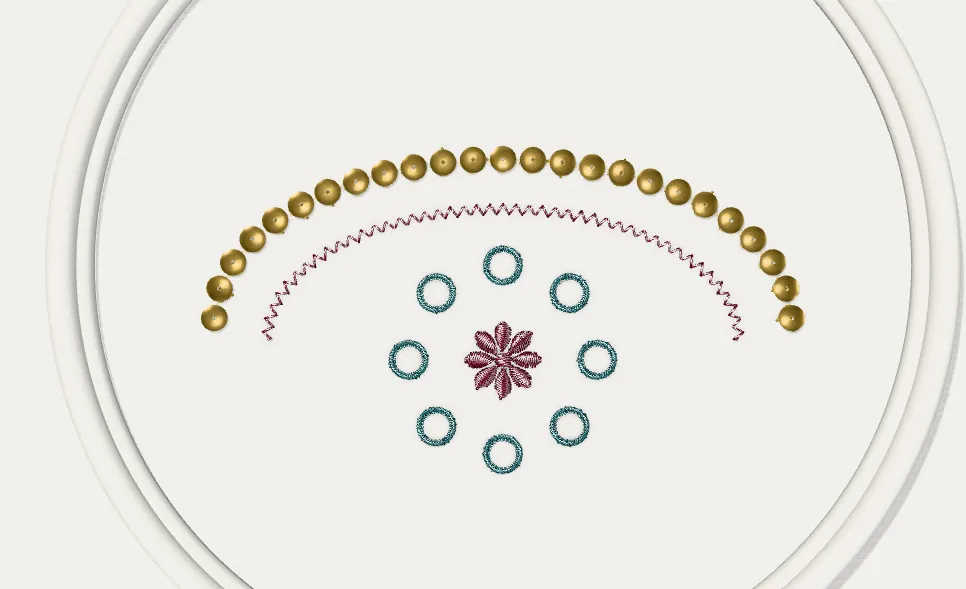
Before you start
- Your machine needs a sequin device. In the object's Sequin settings choose left, right or twin (two sizes or colours), and export to a format that stores sequins (DST or TAP).
- Check the sequin size loaded on the device: 3, 4, 5, 6, 7 or 9 mm are common.
Sequins along a line
- Draw an open or closed path, or select an existing one.
- In Properties → Stitch type, choose Sequin.
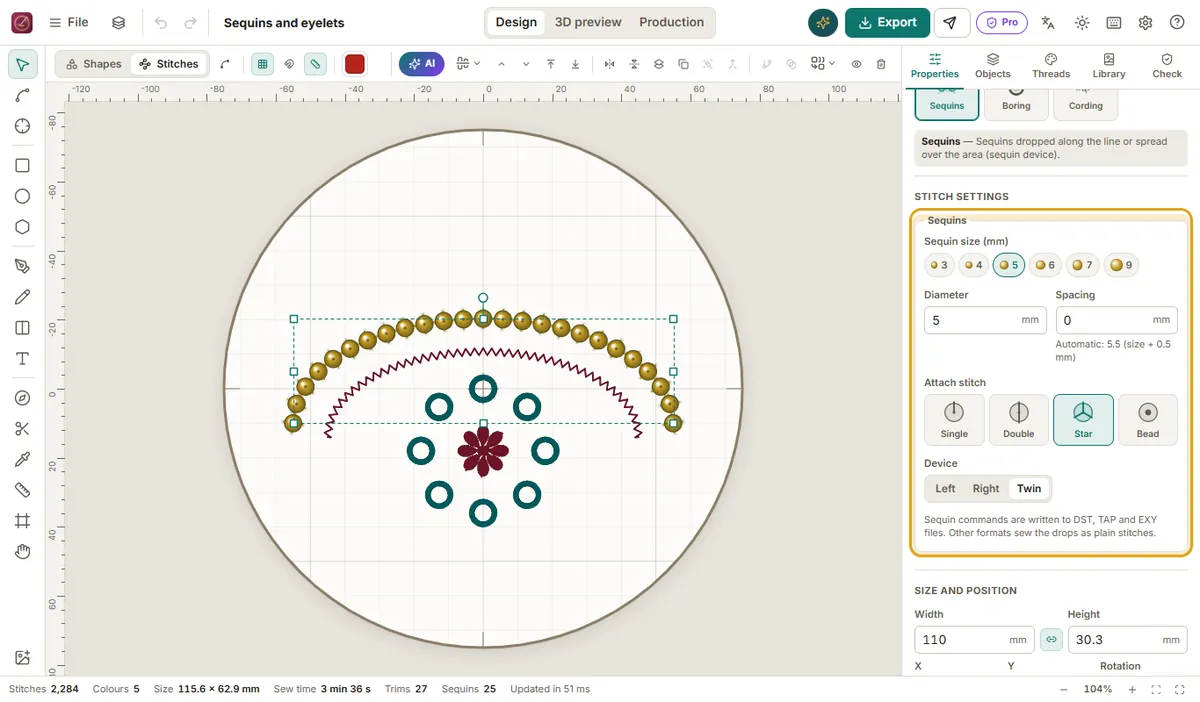
- Set Sequin size (default 5 mm) and Spacing between centres (0 = size + 0.5 mm, sequins just touching).
- Choose the Attach stitch:
- Single: one stitch over the edge, discreet;
- Double: two stitches on opposite sides, more secure;
- Star: several stitches from the centre, decorative;
- Dot: a small stitch through the hole only, for overlapping sequins.
- Select the Device: left, right or twin.
Sequins over an area
Select a closed shape and choose Sequin: sequins are spread over the area in staggered rows, keeping holes free. Use Spacing to choose touching, overlapping or open placement.
Preview, export and the machine
- The 3D preview shows each sequin with its shine and colour.
- On export, Tarz Studio writes sequin down, sequin eject and device changes in formats that support them (for example DST for compatible multi-function heads). The machine check warns if the selected machine has no sequin device.
- The production worksheet lists the sequin size and colour to load on each device.
Tips
- Sew sequins last in their area: stitches sewn afterwards could hit the sequins.
- For curves, use smaller sequins or a little spacing so they do not stand up.