Tarz Cloud: sync and storage
Keep your designs on all your computers and on the web, see your storage space and share proofs with customers.
Tarz Cloud stores your designs in your Tarz account and keeps them in sync between your computers. Your local copies keep working offline; changes are synchronised when the connection returns.
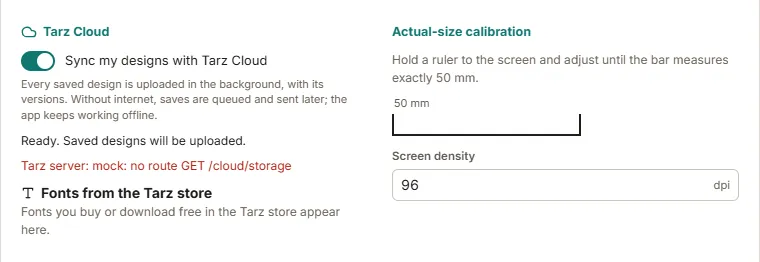
Turn on sync
- In Tarz Studio, sign in with your Tarz account (Help → Sign in, or the welcome screen). Signing in also activates your licence.
- Open Library → Cloud and click Turn on sync.
- Choose what to sync: All designs, or only the folders you select.
- Designs that are synchronised show a small cloud icon in the library; a check mark means the latest version is in the cloud.
On another computer
Sign in with the same account: the cloud designs appear in the library. They are downloaded when you open them, or in advance for folders marked Keep on this computer.
On the web
Open your account on the website, then Cloud library: preview, download in a machine format or share your designs from any browser.
Versions and conflicts
Each save creates a version; you can restore an earlier one from File → Version history. If the same design was changed on two computers while offline, Tarz Studio keeps both and asks which one to use.
Storage space
Your storage space and how much is used are shown in Library → Cloud and on the account page. When the space is full, new designs stay on your computer until you free space or extend it.
Customer proofs
Right-click a design and choose Send proof: the customer receives a link to a realistic preview and can approve it or request changes, without installing anything.
Privacy
Designs are transferred over an encrypted connection and are visible only to you, unless you share a proof or publish a design on the store.